Onboarding and offboarding checklists
Employee onboarding and offboarding checklists
Start a checklist when someone joins or leaves. Each task has a person who does it and a due date, reminders go out by email, and the employee ticks off their own. Progress shows on the People screen, so nothing waits for somebody to remember.
Free for up to 3 people, with a 14-day Pro trial. No card. Checklists are in every plan.
Most small companies run onboarding from memory. The owner remembers the contract and the laptop, the manager remembers to say hello, and nobody remembers the leave balance until the first request arrives and the number is wrong. Leaving is worse. The key card stays active for a month because the last day was a Friday and everyone was busy.
A checklist does not make people careful. It makes the work visible, with a name and a date on every line, so the thing that was going to be forgotten, the badge nobody ordered or the logins nobody switched off, shows up as a late task on somebody's screen instead of a surprise a month later.
The lists
Start from a ready-made list, then make it yours
Open Settings, then Checklists, and add one of six ready-made sets. Each set has an onboarding list and an offboarding list, and the one that fits your kind of business is marked Suggested for you. The Standard onboarding list has ten tasks, from sending the contract for signing to a talk after the first month.
Every list is yours to edit. Rename it, reorder the tasks, change who does each one and when, and add a short note for whoever does it. A list holds up to 60 tasks, and a company can keep up to 40 lists.
- The ready-made lists are examples, not legal advice. Add what your state or your industry asks for.
- Mark one onboarding list and one offboarding list as the one to use when a checklist starts by itself.

How it works
From new hire to finished checklist in three steps
The list does the remembering. You do the welcoming.
Add the person
Add someone with a start date. LeaveCalc asks whether to start the onboarding list, or starts it for you if you chose Start by itself. It also works for people who arrive through an HR sync, an import or the API.
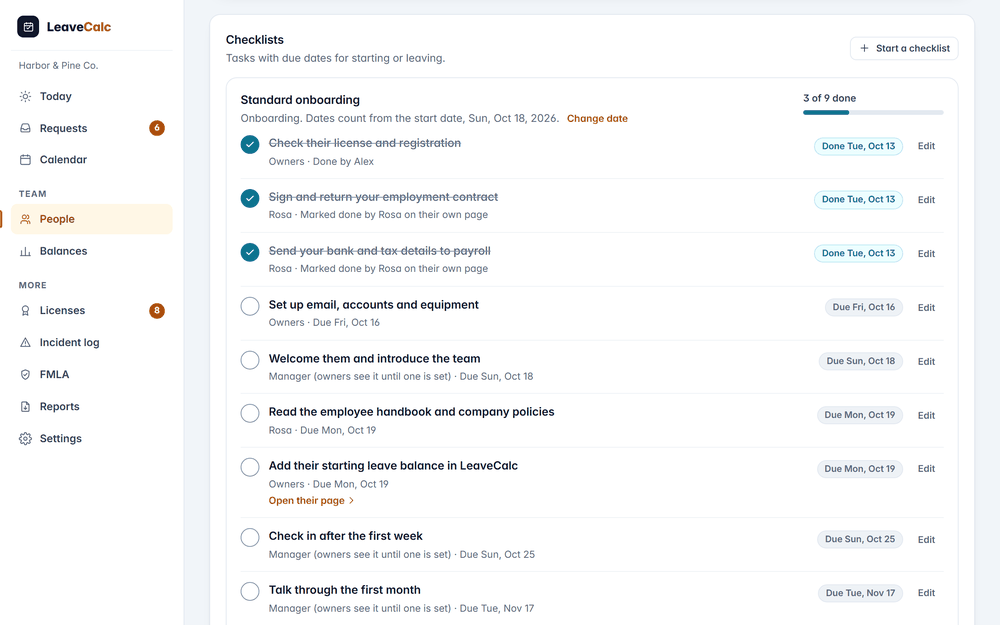
Onboarding 3 of 9 appears beside the name on the People screen.
People do their own tasks
Each task lands on the Today screen of whoever has to do it. The employee's tasks are on their own page with a Mark done button. A task can open the right screen for you, such as Add a license or Assign a course.
Marked done by Rosa on their own page. Every line says who finished it.
Watch it finish
The person page lists every task with its due date and who owns it. A checklist is done when no task is open. Open one again and it is running again.
3 of 9 done. Next due Fri, Oct 16.
Who does it
Every task has a name and a date on it
Choose who does a task: any owner, one named owner or manager, the manager the person reports to, or the employee. Then say when. Seven days before the start date, on the last day, two days after it.
When nobody can act, because no manager is set or the named person has left, the task goes to the owners and the line says so. Nothing sits with nobody.
- A shortcut can send the doer to Add a license, Assign a course, Add a document or the person page.
- Add a note for whoever does the task, for example where to find the course.

Keeping track
One screen for everything that is running
The Checklists screen lists every person with a checklist, how far along it is and when the next task is due. Filter by onboarding or offboarding, by running or finished, by overdue only, or by your own tasks.
The People screen shows a badge beside each name and can filter on it. Download a spreadsheet and you get one row for each task. Owners and managers also get a line in the digest email when onboarding or offboarding tasks are late.

What it does
Small rules that keep a checklist honest
A checklist that nobody trusts stops being used. These rules are why this one holds up.
Dates move with the person
Change a start date or a last day and the open tasks move with it. Tasks already done keep their place, and reminders can go out again for the ones that moved.
Shortcuts to other screens
A task can link to Add a license, Assign a course, Add a document or Open their page, so the next step is one click away.
Not needed counts as done
Skip a task that does not apply. It counts toward finishing, and it still shows as skipped on the record.
Two reminders for each task
One email on the due day and one when it is overdue, from 07:00 company time. A person gets one email with all their tasks, overdue first.
Departments are respected
A manager limited to one department starts, changes and finishes checklists only for people in that department.
History stays
Stop a checklist and it becomes read only. A finished or stopped checklist stays on record, and a re-hire gets a new one.
Compare your options
A spreadsheet or LeaveCalc
A shared spreadsheet is a fine start for one hire a year. It stops working when two people start in the same week.
| What you need | Spreadsheet | LeaveCalc |
|---|---|---|
| Who sees the tasks | Whoever opens the file | Each person sees theirs on Today, and the employee on their own page |
| Due dates | Typed by hand for every hire | Counted from the start date or last day, and they move with it |
| Reminders | You send them | One email when due, one when overdue |
| Progress | Count the ticked boxes | Onboarding 3 of 9 on the People screen |
| The record | The latest copy of the file | Who finished each task and when, kept as history |
| Changing the template | Fix every open copy | Edit the list. Running checklists keep their tasks |
What checklists do not do
- They do not hire, write offer letters or collect e-signatures. A task can remind you to send the contract. The signed copy belongs in the personnel file.
- Due dates count calendar days. A task due on a Saturday is due on Saturday, and the screens say so.
- Employees see only the tasks given to them. A person with no email address on file gets no reminders, and their tasks still show on their page.
- The ready-made lists are examples, not legal advice. Check which notices and forms your state and industry require before you rely on one.
Pricing
Flat price by team size
One monthly price for the whole team, not a price per person. Prices are in US dollars. The employers page has the full plan details.
Free
$0per month
For teams up to 3 people
Checklists included
Pro
$15per month
For teams of 4 to 25 people
Checklists included
Business
$69per month
For teams of 26 to 100 people
Checklists included
Enterprise
$149per month
For teams of more than 100 people, no seat limit
Checklists included
No card for Free or the 14-day trial. Cancel any time, with a 30-day money-back guarantee on paid plans. Paying yearly costs ten months for twelve.
Start freeFAQ
Questions, answered plainly
The basics are a signed contract, bank and tax details for payroll, a laptop and logins, a welcome with the time and place of day one, the handbook and policies, the starting leave balance, and check-ins after the first week and the first month. The ready-made Standard list in LeaveCalc has ten onboarding tasks and eight offboarding tasks. Add whatever your industry needs.
Each task is due a number of days before or after the person's start date, or their last day for an offboarding list. They are calendar days, so weekends and public holidays are not skipped, and the screens say so. A task due on a Saturday is due on Saturday.
Any owner, one named owner or manager, the manager the person reports to, or the employee. When nobody can act, for example because no manager is set or the named person has left, the task goes to the owners and the line says so.
That is your choice, separately for people who join and people who leave. Ask me, the default, shows a question on the person's page. Start by itself uses the list you marked as the one to use, for a person added with a start date up to 14 days ago or later, or for a person who gets a last day or is archived. Never does nothing.
Nothing. A checklist copies its tasks when it starts, so editing the list changes the checklists you start later and leaves the ones that are running alone. If a start date or a last day changes, the running checklist moves with it, and the reminders for the moved tasks can go out again.
One email when a task is due and one when it is overdue, per task and never again, from 07:00 in your company's time zone. Each person gets a single email with all their tasks, overdue first. A task more than 14 days late is not mailed. Owners can switch off the emails to employees, and each owner or manager can switch off their own.
Only the tasks given to them, on their own page after an emailed sign-in link, with a Mark done button. They can undo a task they marked themselves, and nothing else. An employee never sees the rest of the list or anyone else's checklist.
Yes, for their own department. A manager limited to one department starts, changes, stops and finishes checklists only for people in that department. A manager who is given a task can finish that task even for a person from another department. Only owners write the lists.
Also see
Make every first day and last day go the same way
Add a ready-made list in Settings, then start it for the next person who joins.